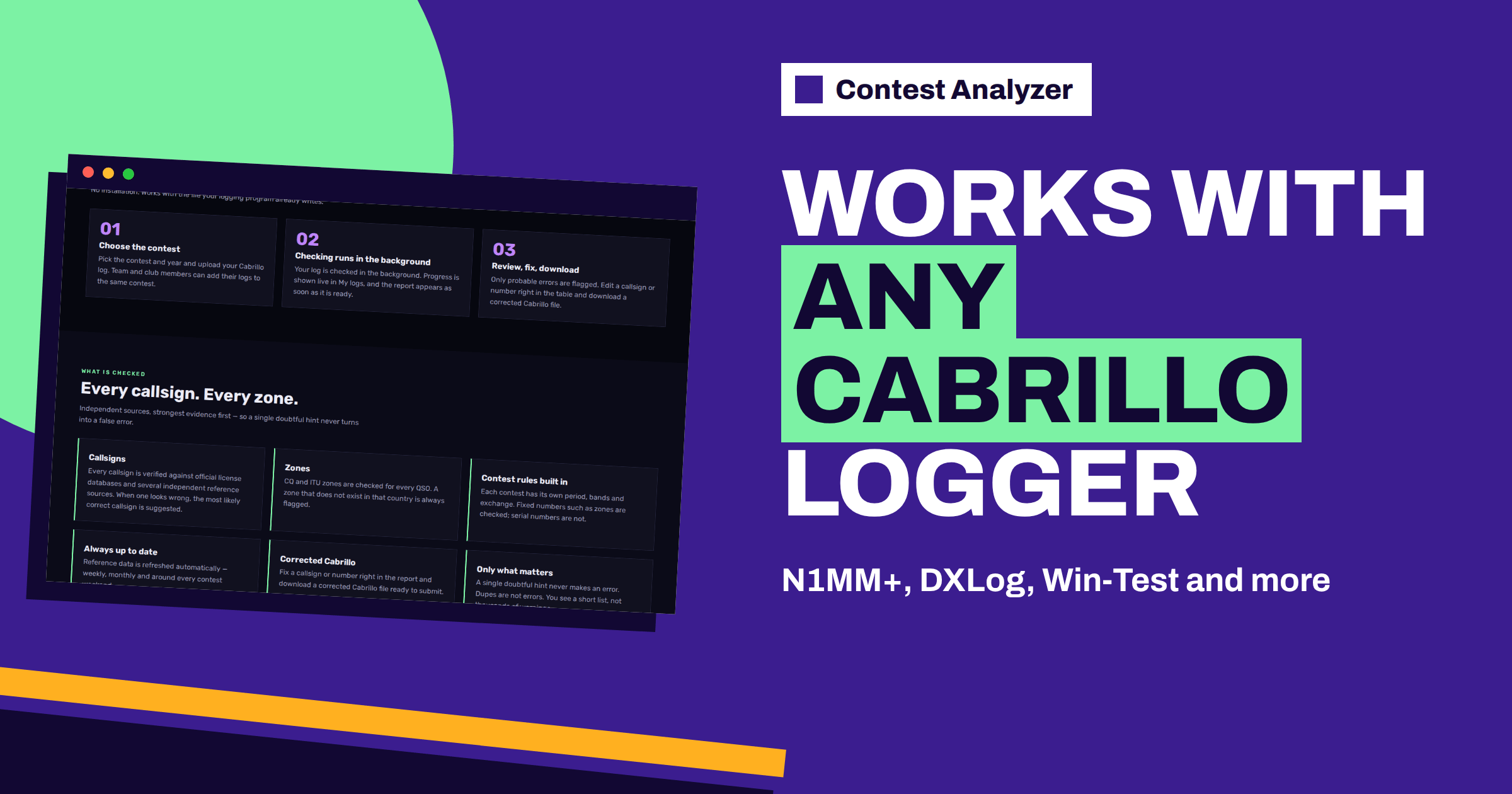
Short answer: The Contest Analyzer FAQ answers the question “Which loggers are supported?” with: any Cabrillo 3.0 file, such as N1MM Logger+, DXLog, Win-Test and others, and it adds that different spacing, an extra TX column and ISO-8859 files are handled. So the logger is not the limit; the file is. Export a clean Cabrillo 3.0 file, read its header and upload it. This article explains what that means and what to check before you upload.
What the FAQ says
The FAQ entry is short but precise. It names three popular programs, N1MM Logger+, DXLog and Win-Test, and then says “and others”, with the condition that the file is Cabrillo 3.0. It lists three variations that the service handles: different spacing in the QSO lines, an extra TX column and files encoded in ISO-8859. The home page repeats the idea in its statistics strip: Cabrillo from any logger, with the three programs listed.
Cabrillo is the common format that contest organisers use for log submission, and nearly all contest software can export it. The format is defined in a public specification, and the article on the Cabrillo QSO line describes the columns of a QSO line. In practice, different programs write slightly different versions of the same format, and that is why the FAQ mentions spacing and extra columns: those are the usual differences between programs.
Why the three differences matter
Spacing differences come from the way each program aligns the columns of a QSO line. One program may use a fixed width, another a single space, and a third may add extra spaces for readability. An analysis tool that expects one pattern may fail with another. The FAQ says that different spacing is handled, so you do not need to edit the file to match a pattern.
An extra TX column appears in logs of some contests and programs, where the transmitter number is added to each line, for example in multi-transmitter categories. This changes the position of the following fields. The FAQ says that such files are handled too. And ISO-8859 refers to a character encoding, which is the older single-byte encoding used by some programs and older systems, different from UTF-8. Names with accented letters in the header can look wrong if the encoding is misread. The article on Cabrillo file encoding and line endings explains the background.
Exporting from your logger
Each program has its own menus for the export, and they change between versions, so use the help of your own program for the details. In general, the export is found in the file or log menu, under a name such as “Export Cabrillo” or “Generate Cabrillo”. Before you export, check that the contest in the logger is the right one, that the category fields are filled and that your callsign is correct. The article on exporting Cabrillo from N1MM Logger+, DXLog and Win-Test goes through the general steps and the typical export problems.
When the export finishes, open the file in a text editor, not in a word processor. A word processor can change quotes, line endings and the encoding. A plain text editor shows the file as it is, and you can see the header and a few QSO lines. That quick look is the best protection against a wrong upload.
What to look at in the file
- The first line should say START-OF-LOG: 3.0, which confirms the version.
- The CALLSIGN line should show the call you operated with.
- The CONTEST line should match the contest you will choose in the upload.
- The CATEGORY lines should describe what you really did.
- The QSO lines should start with the frequency or band, the mode, the date and the time in UTC.
- The last line should be END-OF-LOG.
If something is wrong, fix it in the logger and export again, rather than editing the file by hand. A hand edit can introduce mistakes that are hard to see. The Cabrillo header guide describes each field in more detail.
Choosing the contest on upload
After you have the file, you choose the contest and the year in Contest Analyzer. Each contest has its own period, bands and exchange built in, and fixed values such as zones are checked, while serial numbers are not. The contests page lists all 22 supported contests with their modes, dates and log deadlines, and each row has an Upload log link. Choose the contest that matches the CONTEST line of your file, and in mixed-mode contests make sure that the entry matches what you did.
If the logger writes a contest name that you do not recognise from the list, check the contest in the logger itself. The program may have a different name for the same event. When in doubt, ask through the contacts page before the deadline.
Other loggers and older files
The FAQ says “and others”, and in practice many other programs produce Cabrillo files: free programs, commercial programs and club tools. What matters is that the file follows Cabrillo 3.0. An older Cabrillo 2.0 file, or a file written by a script, may differ. If your program offers a choice of Cabrillo versions, choose 3.0. If it does not, export the file and read the first line. If you are unsure, test with a small log before the contest weekend, and see how the report looks.
The same advice applies to logs from earlier years. If you want to compare this year’s contest with an old one, you can upload old logs that you still have as long as they are in Cabrillo 3.0. The service supports year-on-year comparison with your own logs, and old files are a good way to build a history. See comparing the same contest year on year for a method.
Multi-operator and multi-transmitter exports
Stations with more than one operator or more than one transmitter produce files that are a little different. Each QSO line may carry the operator or the transmitter number, and the header may list several operators. An extra TX column is one typical way of recording this. If you operate in such a category, check two things before you export: that the logs of all computers are merged into one database, and that the clocks of the computers were synchronised during the contest, so that the order of QSOs in the file is correct. A merged log with a computer that was a minute off produces gaps and odd sequences, which can later be mistaken for errors.
After the merge, export one Cabrillo file for the whole station and upload that file. If the contest rules require separate files for separate entries, follow the rules. The article on rate sheets by operator in multi-op stations shows how the operator field can be used for statistics after the contest.
Keeping your files organised
A little order saves time every year. Create a folder for each contest and year, and keep inside it the original database of the logger, the exported Cabrillo file, the corrected file that you download from the report and your audio recording if you made one. Name the files with the callsign, the contest and the year, for example the call, the contest abbreviation and the year, so that you can find them years later. Keep a copy of the folder on a second drive.
The habit pays off when you want to compare logs from several years, as the article on comparing the same contest year on year suggests. It also helps when an organiser asks a question about the log months after the contest, or when you want to practise with old audio and logs, as in contest training with old logs. Backups are covered in backup copies of contest logs.
Problems you can avoid
A few simple habits remove most of the trouble. Keep one clean Cabrillo file per contest and name it clearly. Never open and save the file in a word processor. Do not mix logs of different bands or modes in one file unless the contest has a category for it. Avoid special characters in the header fields where you can. And if you merge the logs of several computers in a multi-operator station, merge them in the logger and then export one Cabrillo file; the articles on merging logs from several computers and invalid characters in Cabrillo explain the reasons.
After the upload, the check runs in the background with live progress in My logs. In the report you can edit calls, zones, time and frequency and download a corrected Cabrillo file ready to submit. The report also marks QSOs outside the contest period and outside the band limits for your ITU region, and dupes are listed separately.
One last point concerns mixed-mode contests. In an event where CW, SSB and RTTY are all allowed, the mode of each QSO is part of the line, and the contest may count the modes in different ways. Check that your logger writes the correct mode for each QSO and that the file you export is the one the contest expects. The contests page lists some contests as MIXED, and it is worth reading their rules before you choose the entry.
Related reading
- Submitting Your Cabrillo Log: Upload and Email
- Cabrillo Header Mistakes That Cause Trouble
- From Cabrillo File to Report: A Step-by-Step Walkthrough
The bottom line
The logger does not decide whether your log can be checked; the format does. Any Cabrillo 3.0 file works, with different spacing, an extra TX column or ISO-8859 encoding. Export from your logger, read the header in a plain text editor, choose the right contest and upload.
FAQ
Which loggers are supported?
Any Cabrillo 3.0 file, including N1MM Logger+, DXLog, Win-Test and others, according to the FAQ.
Do I need to edit the file for different spacing?
No. The FAQ says that different spacing, an extra TX column and ISO-8859 files are handled.
Should I open the file in a word processor first?
No. Use a plain text editor if you want to look at it, and do not save changes unless you have to.
Can I upload logs from earlier years?
Yes, if you have them in Cabrillo 3.0. They help with the year-on-year comparison of your own logs.