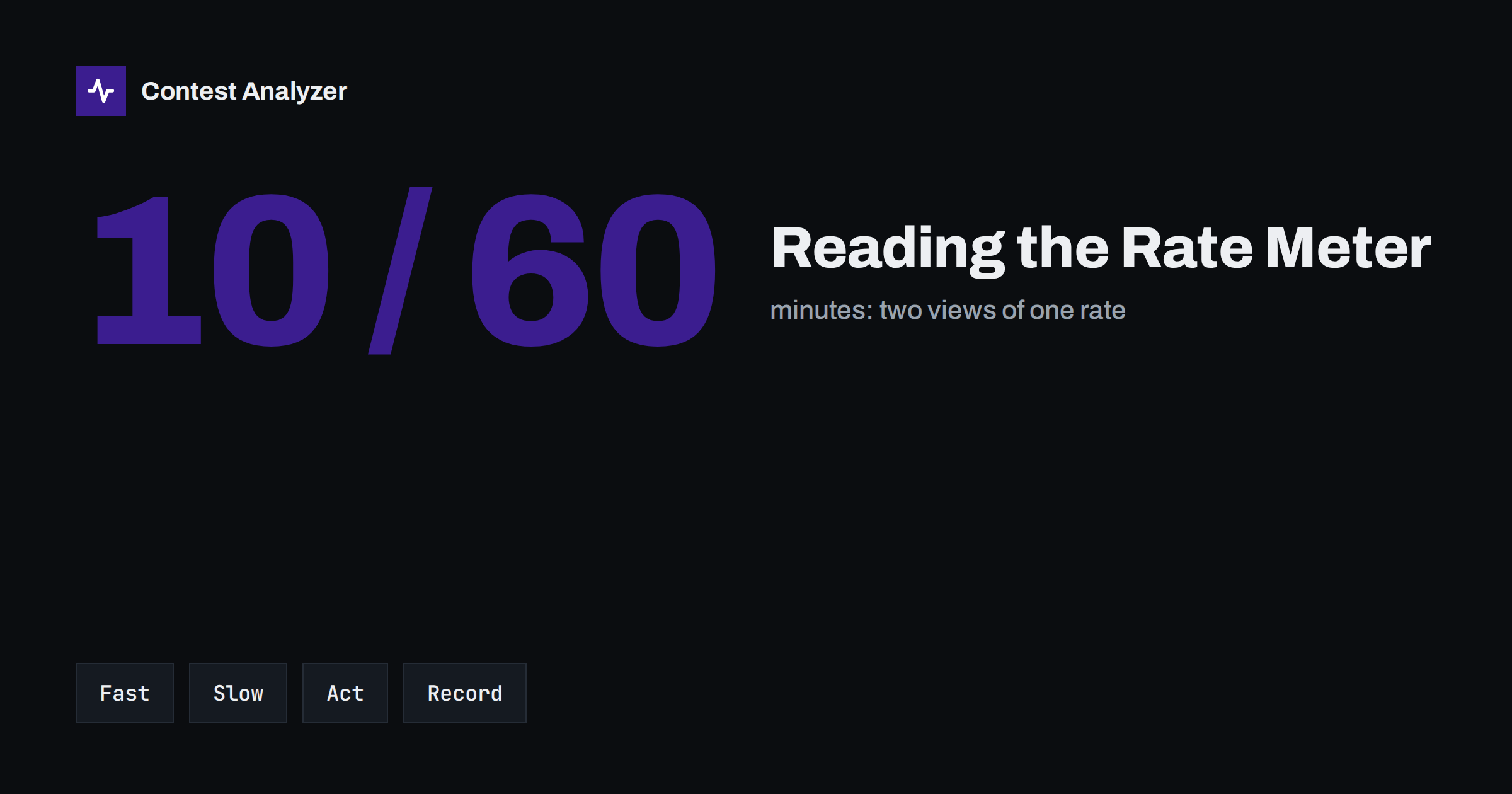
Short answer: The rate meter in your logging program turns the QSO count into a number you can act on while the contest is still running. A short window, such as the last 10 minutes, reacts quickly but jumps around. A long window, such as the last 60 minutes, is steady but slow. Use the short one to notice a change and the long one to decide whether it is real. Change band or frequency when the trend is down for long enough to be more than a lull, not after one empty minute.
What the meter actually shows
Most contest loggers, including N1MM Logger+, DXLog and Win-Test, display some form of rate in the main window or in a separate panel. The idea is the same everywhere: the program looks at the QSO time stamps, counts the contacts inside a recent window of time and expresses the result as QSOs per hour. A 10-minute rate of 120 does not mean you made 120 QSOs; it means you made 20 in the last ten minutes, which is the pace of 120 per hour if it continued.
Many programs give several figures at once, such as the last 10 minutes, the last hour and the whole contest so far, and some also show the rate of the last 100 QSOs. The exact labels and the default windows vary, so open the setup of your own program and find out what each number covers before the contest. A rate you misread is worse than no rate at all.
One more thing is worth knowing. The meter counts what is in the log. If you log a dupe, it usually counts as an entry in the rate display even though it gives no points, because the display is about activity. Check how your logger treats dupes if you want the meter to reflect valid QSOs only. Dupes are not errors, and our article on dupes in contest logs explains how to treat them.
Why 10 minutes and 60 minutes tell different stories
The two windows answer different questions.
- The short window answers: what is happening now? A pile-up that began two minutes ago pushes the 10-minute rate up within a few minutes. A frequency that was taken by a stronger station shows up just as quickly. The price is noise. Ten minutes contain only a small number of QSOs, so a single long exchange or a short pause moves the figure a lot.
- The long window answers: how good is this period? An hourly rate smooths out the gaps. It is much better for comparing one stretch of the contest with another or for judging whether the band is still productive. It is also late: a clear drop can be five or ten minutes old before it is visible in the hourly number.
Operators who look only at the short rate tend to change frequency too often, because every lull looks like a failure. Those who look only at the hourly rate tend to stay too long on a frequency that has died. The two together give you a more accurate picture: if the short rate is falling and the long rate has not moved yet, a change has started; if both are falling, it has probably been going on for a while.
Reading the numbers while you run
When you are running, meaning you call CQ on a frequency and stations come to you, the rate meter is mostly about holding the frequency and spotting a decline. Some patterns to recognise:
- A steady rate with small ups and downs is normal. Do not touch anything.
- A sudden fall to a fraction of the previous value, for example because a neighbour started a strong signal close to you, is a reason to check the frequency for interference before you decide that the band has gone.
- A slow slide over twenty or thirty minutes often means that the callers on that band have been worked, or that propagation is changing. The long window confirms it.
- A rate that stays flat but with long gaps between callers means you are using the band, but not well. Perhaps another band would be better at this hour.
It helps to have your own thresholds. Look at an earlier log of yours and note the rate you usually keep on each band at each time of day. A figure that is below your own normal by a clear margin tells you more than any absolute number from someone else. How to read these figures afterwards is covered in the article on contest rates.
Search and pounce is a different animal
When you tune across the band and call other stations, the rate meter behaves differently. Each QSO takes more time because you have to find the station, wait for a clear moment and call. The 10-minute window may swing widely from one run of quick contacts to a quiet stretch. The hourly rate is usually lower than when running, and this is normal.
In this mode the rate meter is useful for something else: judging whether the effort is worth it. If your pounce rate over half an hour is clearly lower than what you would get from calling CQ on a decent frequency, it may be time to start running again, or to change band. The article on run versus search and pounce looks at how to measure each style. When you mix them in the same hour, the meter shows only a blend, so some operators note the change of mode in a comment field or a paper log.
When to react, and how
A rate meter is useful only if you have decided in advance what you will do with it. Here is a simple approach.
- Define a trigger. For example: if the 10-minute rate has been below half of the hourly rate for fifteen minutes, I act. The exact numbers are yours to set, and they depend on band and mode.
- Do the cheapest change first. Move a few kilohertz, check that the frequency is clear and send CQ again. If the rate recovers, you are done.
- Then try another band. Look at where the multipliers and the callers are likely to be at this hour. A band change costs time, so make it when the trend is clear.
- Allow a short test. After a change, give it ten or fifteen minutes before judging. The short window will show the new level sooner than the hourly one, but it needs time to fill.
- Write down what you did. A line in the notes with the time and the reason helps you afterwards.
The same logic applies to when to take a break. If the rate has been low for a long time, a rest costs fewer points than at a peak. Planning breaks is covered in the article on off time and breaks.
Traps that distort the meter
- Logging in batches. If you copy several QSOs on paper and enter them later, the time stamps pile up and the meter reports a rate that never happened.
- A wrong PC clock. A time zone or clock error moves all stamps and spoils the windows. See the article on UTC clock errors.
- Comparing different modes of operating. A rate in a pile-up and a rate while tuning for multipliers are not the same thing.
- Chasing the number. A higher rate is not the goal in itself. A rate bought by sending too fast, guessing calls and skipping fills will cost you in accuracy.
- Trusting a short window too much. Do not move because of one minute of silence.
From the meter to the full picture afterwards
The meter is a live tool. After the contest you can look at the same activity with more detail. Contest Analyzer gives you full statistics from your Cabrillo file: rates, QSOs by hour and band, countries, continents, CQ and ITU zones, WPX prefixes, distance, beam heading, breaks and off time, and callsign length and structure. You can compare the result with your own logs from earlier years, which shows whether your typical rate on a band went up or down. At the same time, the report checks every callsign and every zone against official license databases and several independent reference sources and lists only the few QSOs worth a second look. It works with Cabrillo files from N1MM Logger+, DXLog and Win-Test and supports 22 contests; see the list.
Related reading
The bottom line
The rate meter is a compass, not a score. Use the short window to notice change and the long window to confirm it, decide your trigger before the contest and act on trends, not on single quiet minutes. Keep your clock right and your logging live so the numbers are true, and read the full statistics after the event to learn what the meter could not tell you.
FAQ
Which rate should I watch most?
Look at both. The short window shows what is happening now, and the hourly figure tells you whether it is a real trend. Neither is enough alone.
Does the rate meter count dupes?
That depends on the logger. Many count every logged contact, so check the settings if you want a rate of valid QSOs only.
How long should I wait before changing band?
Long enough to be sure that it is a trend and not a lull. Many operators use a rule based on a clear drop in the short rate that lasts a quarter of an hour or so, but you should set your own.
Why is my rate lower when I search and pounce?
Each QSO takes longer because you must find the station and wait for a moment to call. This is normal and does not mean you are doing it wrong.
Can I see my rate after the contest?
Yes. Contest Analyzer shows rates and QSOs by hour and band from your Cabrillo file, so you can look at the whole contest in detail.