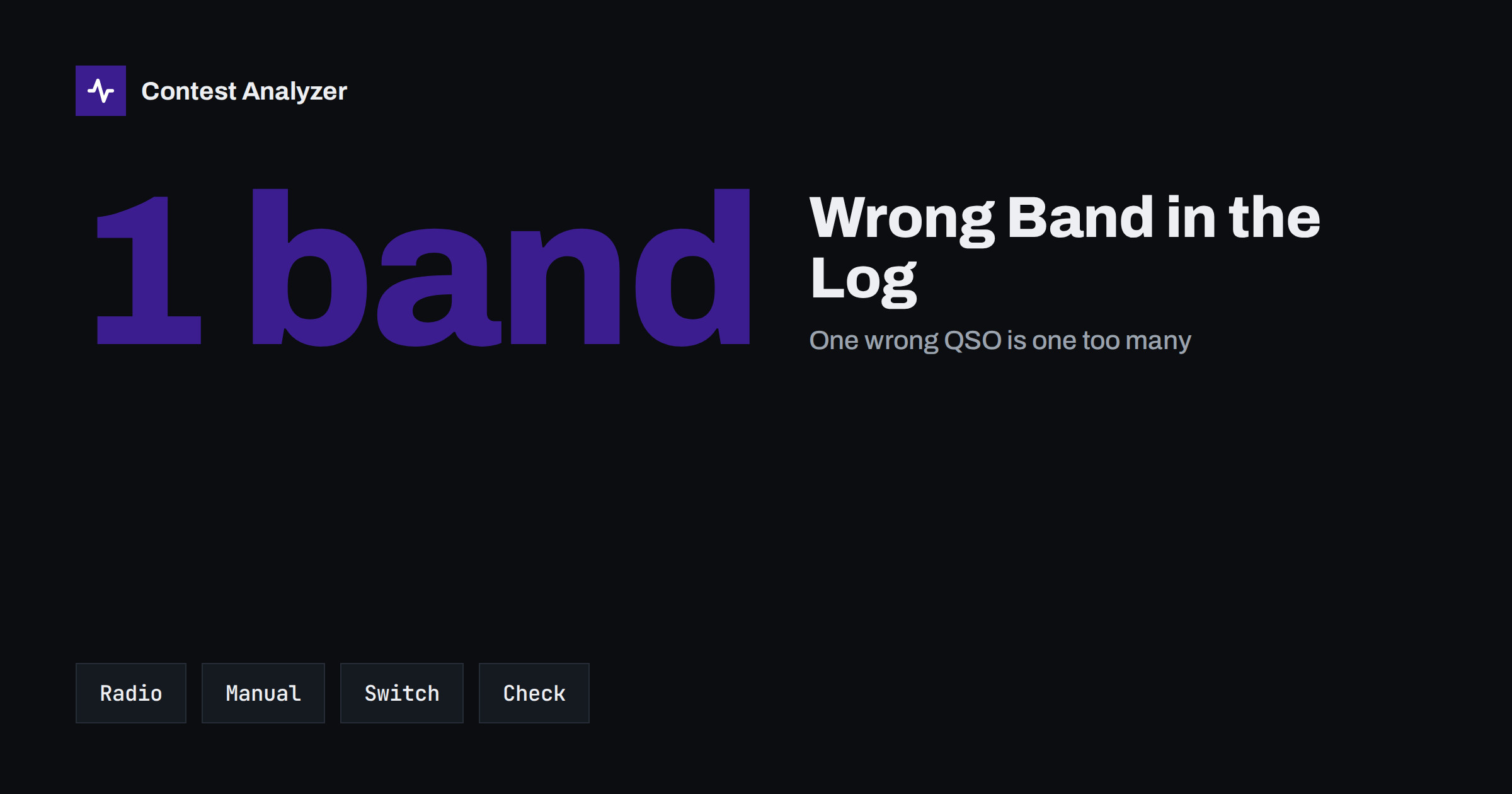
Short answer: A wrong band in the log usually appears when the logger does not get the true frequency from the radio, or when the band is entered by hand and the operator forgets to change it. The QSO is real but it is recorded on the wrong band, and that can create false dupes, wrong multipliers and QSOs outside the band limits. You can find the errors by scanning the frequency and band columns for lines that do not match, and you can prevent most of them with a few settings and habits.
How it happens
There are three typical situations. In the first, the logger reads the frequency from the radio through a cable. If the cable fails or the program loses the connection, the logger keeps the last frequency and band that it knew. You switch to another band, work stations and the logger still believes that you are on the old one. In the second, you use a system where the band is entered by hand, for example during a trial of a new setup or when the radio has no computer connection. A missed key press means that a whole stretch of QSOs goes to the wrong band.
In the third situation, the problem lies in the antenna or band switching. A band decoder, an antenna switch or a second radio changes the path, and the logger does not know about it. This is common in SO2R and in stations with several radios, as described in SO2R basics for contesters. The radio data may come from the wrong radio, and the logger may show the band of the radio that is not on the air.
What the errors cost
A QSO on the wrong band can cost you in several ways. If it is a dupe on that band, the logger may mark it as a duplicate and give no points, while the real QSO on the other band would have counted. If it is a multiplier, the wrong band can make a new multiplier look like a repeated one or the other way round. If the frequency in the file does not fit the band written next to it, the log may be flagged by the checking software, and the QSO may be removed.
There is also a risk of QSOs outside the allowed band edges for your region. If the frequency that the logger stored is outside the limits, the QSO can be rejected. The article on band edges and ITU regions explains the limits, and the one on the frequency field in Cabrillo describes what the file should contain.
Finding band errors in the log
The simplest way to find band errors is to sort the log by time and scan the band and frequency columns. Look for sudden changes that do not fit your own memory of the contest: a band that appears for one QSO in the middle of a long run on another band, a frequency that jumps by several megahertz and returns, or a frequency that does not fit the band written in the same line. These are the marks of a lost radio connection or of a missed manual entry.
Another approach is to look at the frequencies and see whether they are plausible for the mode. A CW QSO on a frequency that is in the phone part of the band, or the other way round, may point to a wrong frequency, though some contests allow operation in unusual segments. The article on frequency field errors in the logger gives more examples, and the one on rate versus band changes shows how band changes look in the statistics.
Using statistics to spot them
The hourly view by band shows band errors as odd points: a single QSO on a band that you were not using at that hour, or a band that seems to be in use at two places at once. If your log shows two bands with QSOs in the same minute, check whether you used two radios, which is normal for SO2R, or whether it is an error. Contest Analyzer gives QSOs by hour and band, rates and breaks, so you can see this picture, and it marks QSOs outside the contest period and outside the band limits for your ITU region, with split QSOs shown as a note.
It also checks every callsign and every zone against official license databases and several independent reference sources and shows only the few QSOs worth a second look. In the report you can edit calls, zones, time and frequency, mark QSOs checked in your own audio recording and download a corrected Cabrillo. It works with Cabrillo from N1MM Logger+, DXLog and Win-Test. See the contests page for the supported contests.
Using audio and notes to settle the question
If you find a band that looks wrong, you have to decide what the true band was. The most reliable evidence is the recording, if you have one. Listen to the QSO and note the band by the sound of the signal, by what the other station says, or by the other QSOs around it. Your station notebook can help, too: if you wrote down the times when you switched antennas or bands, you can see which band you were on at the time of the QSO. The article on the station change notebook explains the idea.
When you correct a band, correct the frequency at the same time. A band that is changed but a frequency that remains the old value creates a new mismatch, and the file may be rejected by the checking software. If you do not know the exact frequency, use a frequency in the middle of the right band and in the right segment for the mode, as a last resort. Many contesters prefer to remove a QSO whose band cannot be proved than to guess.
Preventing band errors
Prevention starts with the connection between radio and logger. Use a reliable cable, check that the logger shows the frequency of the radio when you turn the dial, and look at that display at the start of each QSO. If the display does not follow the radio, stop and fix it before you work more stations. A habit of looking at the frequency in the logger takes a fraction of a second and catches most failures at once.
Set the logger to warn you when the connection is lost, if it has such a function, and to show the band in a place that you can see at a glance. In an SO2R station, check that the logger follows the radio that you transmit on. Test the whole setup before the contest by changing bands several times and checking that the log entries follow. The article on logging software backups and settings adds more checks for the logger configuration.
Manual entry: use a rule
If you have to enter the band by hand, make a rule. For example, say the band out loud when you change, or write it on a sticky note on the screen. Do not rely on memory. Some operators set a timer to remind them every hour to check the band in the logger. This looks silly, and it works. A single wrong entry that continues for an hour can damage dozens of QSOs, and a reminder is a cheap protection.
After the contest, do not trust the band column more than you trust the frequency column. Both can be wrong, but when they disagree, you have found a problem. A quick check of the mismatch is the best use of five minutes before you submit the log.
A short test at the start
The best moment to find a band problem is in the first minutes of the contest, when only a few QSOs are in the log. After the first three or four QSOs, stop for fifteen seconds and open the log. Does each line show the right band and a frequency that matches the radio? Does the time look right? Change band once on purpose, work or simulate one QSO, and see whether the logger followed. A test like this takes under a minute and has saved many contesters from a whole night of wrong entries.
Repeat the test after any change at the station: a new antenna switch setting, a cable that was moved, a computer that restarted. The logger may reconnect to the radio on its own, or it may not, and you will not know until you look. Many operators add a line in the station notebook for each change, with the time, so that a later review of the log can match a sudden error to a physical event. This is simple, and it can turn a mystery into a one-minute fix.
If you are using a second operator or a guest in the seat, tell them about the band check. A new person may not know that the frequency on the screen is the first thing to look at, and a short remark at the start of the shift is enough.
Related reading
- Split operation and contest logging
- Using a second radio for search and pounce
- Checking your contest log before you submit
The bottom line
Keep the logger and the radio in step, look at the frequency at the start of each QSO and scan the band and frequency columns after the contest. Correct the band and the frequency together.
FAQ
Why does the logger show the wrong band?
Usually because the radio connection was lost or the band was entered by hand and not changed.
Does a wrong band always cost the QSO?
Not always, but it can create a false dupe, a wrong multiplier or a QSO outside the band limits.
How can I find band errors quickly?
Sort by time and scan the band and frequency columns for lines that do not fit.
What if I cannot tell the true band?
Use your audio recording and notes. If you cannot prove it, consider leaving the QSO out.
Can Contest Analyzer correct the band?
It marks QSOs outside the band limits, and you can edit the frequency in the report.