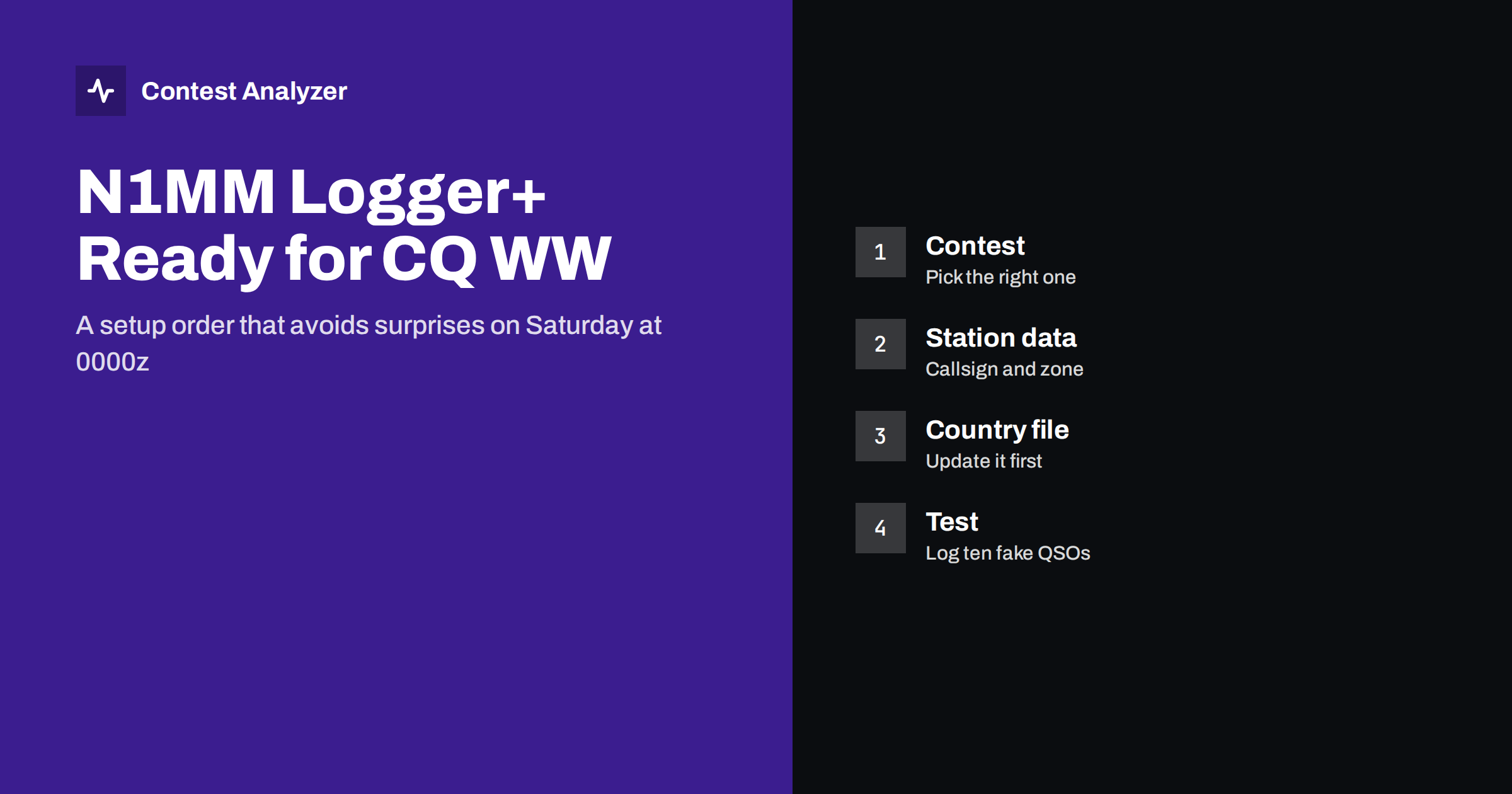
Short answer: To get N1MM Logger+ ready for CQ WW, create a new log for the right contest and mode, enter your station data including your CQ zone, update the country file, connect your radios and keyer, and run a short test with practice QSOs. Do all of it several days before the contest, not on Friday night. Menu names can change between versions, so use this article as an ordered checklist and confirm each step in the current program and its documentation.
Start with the rules, not the software
Before you open the logger, remember what CQ WW DX asks you to exchange: an RST report and your CQ zone. That small exchange drives most of your setup, because the logger needs to know your own zone to send it and the other station’s zone to log it. CQ WW also comes as separate SSB, CW and RTTY weekends, and each has its own contest entry in the logger. Check the current official rules at cqww.com for the categories, the operating periods and the log deadline, which at present is 48 hours after the end of the contest.
Write down what you intend to enter: single operator or multi-operator, band or all bands, assisted or non-assisted, power level. The logger itself does not force a category on you, but it influences several settings, and the same information goes into your Cabrillo header at the end. We explain those fields in the Cabrillo header guide.
Step 1: create the log for the right contest
In N1MM Logger+ every contest lives in its own database file. Use the new-log function from the File menu, choose a fresh database or a new log inside an existing one, and select the contest from the list. Pick the CQ WW entry that matches the weekend you will operate: SSB, CW or RTTY. Selecting the wrong one is a surprisingly common mistake, because the names are similar and the exchange looks the same on screen. The contest definition controls the scoring, the multiplier tracking and the layout of the entry window, and it also controls what is written into the exported Cabrillo file.
When the program asks for the log details, fill in the start date and time, the category options that it offers, and the contest name exactly as it appears. If you are unsure about a category, leave it for later and check the rules, because you can usually adjust it before export.
Step 2: station data and your own zone
Next open the station data dialog from the Config menu. This is where your callsign, name, address, country, CQ zone, ITU zone and grid locator are stored. For CQ WW the important entries are:
- Callsign. Enter the call you will use on the air, exactly as you will send it. If you operate with a portable indicator or from a club station, make sure the logger holds the same call as you send, since it also ends up in the log.
- CQ zone. This is the number the logger sends as your exchange. Check it against a zone map rather than relying on what the program suggests, especially if you are in a country that spans several zones. Our article on CQ zones shows where the split countries are.
- Country and ITU zone. They are not part of the CQ WW exchange, but the logger uses them for its own calculations, so a wrong country entry can distort distance and multiplier statistics.
If you go on a DXpedition or use a guest call, change these values before you start, not during the contest. Many “wrong zone sent” cases come from a station that moved and forgot to update the program.
Step 3: update the country file
The logger decides which country and which zone belong to a callsign by reading a country file, usually the widely used CTY data compiled by AD1C. New prefixes, changed entities and corrected zones appear there from time to time. If your file is old, the logger may mark a new entity as a wrong call, or show the wrong zone for a call that has been reassigned. That affects the multiplier counters and the pre-filled zone in the entry window.
Update the file shortly before the contest, using the update function for country files in the program’s tools, or download the file from the official country-files site and import it. Check the current documentation for the exact menu entry. After the update, type a few test calls from different continents and confirm that the country and zone shown look right. Some countries, such as the USA, Canada, Russia, Brazil and China, span more than one zone, so the logger can only suggest a zone, and you must listen to what the other station really sends.
Step 4: radios, keyer and sound
The next part is hardware and has little to do with CQ WW itself, but it decides whether your logging works at 3 a.m.
- Radio control. Set up the serial or USB port, speed and radio type in the port configuration, and check that the logger reads the frequency and mode. A wrong frequency or mode reading puts the QSO on the wrong band in your log.
- CW keyer. If you use the logger as a keyer, confirm the port or the winkey type, test the speed control and set the function key messages. Keep the messages short and consistent. In CQ WW the exchange is the report and your zone, so a message such as “5NN” plus your zone number is enough.
- SSB voice keyer. Record or load the messages, test the audio level and check the push-to-talk line. Do not discover on Saturday that the recordings are too quiet.
- Second radio and SO2R. If you run two radios, configure each radio’s input window separately. We cover the logging side in our article on SO2R basics.
Step 5: the entry window and the data you carry
Open the entry window and look at what happens when you type a call. The logger should show the country, the zone, the bearing and whether the station is new on the band. For CQ WW also check the following:
- The tab order puts you in the right field after the callsign, so that you can type the report and the zone without reaching for the mouse.
- The default report is 59 or 599 as appropriate, so you only type it when it is different.
- The sent exchange shows your own zone correctly.
- A duplicate call on the same band is flagged. Working a dupe is not an error in the log, but the logger should tell you so that you can decide whether to log it anyway.
If you use a callsign suggestion window, load the most recent version of its database before the contest.
Step 6: run a rehearsal
A real test is worth an hour of reading menus. About two days before the contest, do this:
- Log ten to twenty practice QSOs, using the real exchange, on at least two bands and one mode change if you plan to switch.
- Use calls from several continents, a split-zone country and a call with a slash.
- Export a Cabrillo file and open it in a text editor. Check the header lines, the date, time, frequency, the callsigns and the exchange columns.
- Delete the practice QSOs or use a separate database so they never reach the final log.
The export test is the one most people skip, and it is the one that finds problems with the CONTEST line, with the category and with the time format. For more detail on exporting, see our guide to Cabrillo export from N1MM Logger+, DXLog and Win-Test.
Back up during the contest
Set up automatic backups of the database to a second drive or a cloud folder, and make sure the PC clock is synchronized and set to the correct time zone, since the logger stamps every QSO with it. Plan for a power or PC failure by having a paper log or a second computer ready. At the end of the contest, export the Cabrillo file immediately and keep a copy of the database before you start editing.
After the export, run the file through Contest Analyzer before you send it to the sponsor. The service accepts Cabrillo from N1MM Logger+, DXLog and Win-Test. It checks every callsign and every zone against official license databases and several independent reference sources and shows only the few QSOs worth a second look. You can edit callsigns or zones in the report and download a corrected Cabrillo. It also gives full statistics, such as rates, QSOs by hour and band, countries, continents and CQ and ITU zones, and a year-on-year comparison with your own earlier logs. It does not check serial numbers, and duplicates are not treated as errors. Our CQ WW SSB checklist puts all of this into one before, during and after plan.
Related reading
- CQ WW DX SSB checklist
- Exporting Cabrillo from N1MM Logger+, DXLog and Win-Test
- CQ zones explained
- Supported contests
The bottom line
A good CQ WW setup is a short list done in the right order: the correct contest entry, correct station data and zone, a fresh country file, tested hardware, and a rehearsal that ends with a Cabrillo export. Do it all early. During the contest your attention belongs on the band, not on the settings.
FAQ
Which exchange do I enter in the logger for CQ WW?
You send an RST report and your CQ zone, and you log the report and the zone you receive. The logger needs your own zone in the station data to send it correctly.
How often should I update the country file?
Update it shortly before each major contest, since new entities and zone corrections appear from time to time. A few minutes of work can prevent wrong multiplier counts.
Can I change the category after I created the log?
In most cases you can adjust it before exporting the Cabrillo file, but check the program’s current behavior and the header of the exported file.
Should I test the Cabrillo export before the contest?
Yes. A test export with a few practice QSOs shows header, time and exchange problems while you still have time to fix them.
Does the same setup work for CQ WW CW and RTTY?
The principle is the same, but you pick the CW or RTTY contest entry, and the keyer or decoder settings differ. Always check the official rules for each mode.