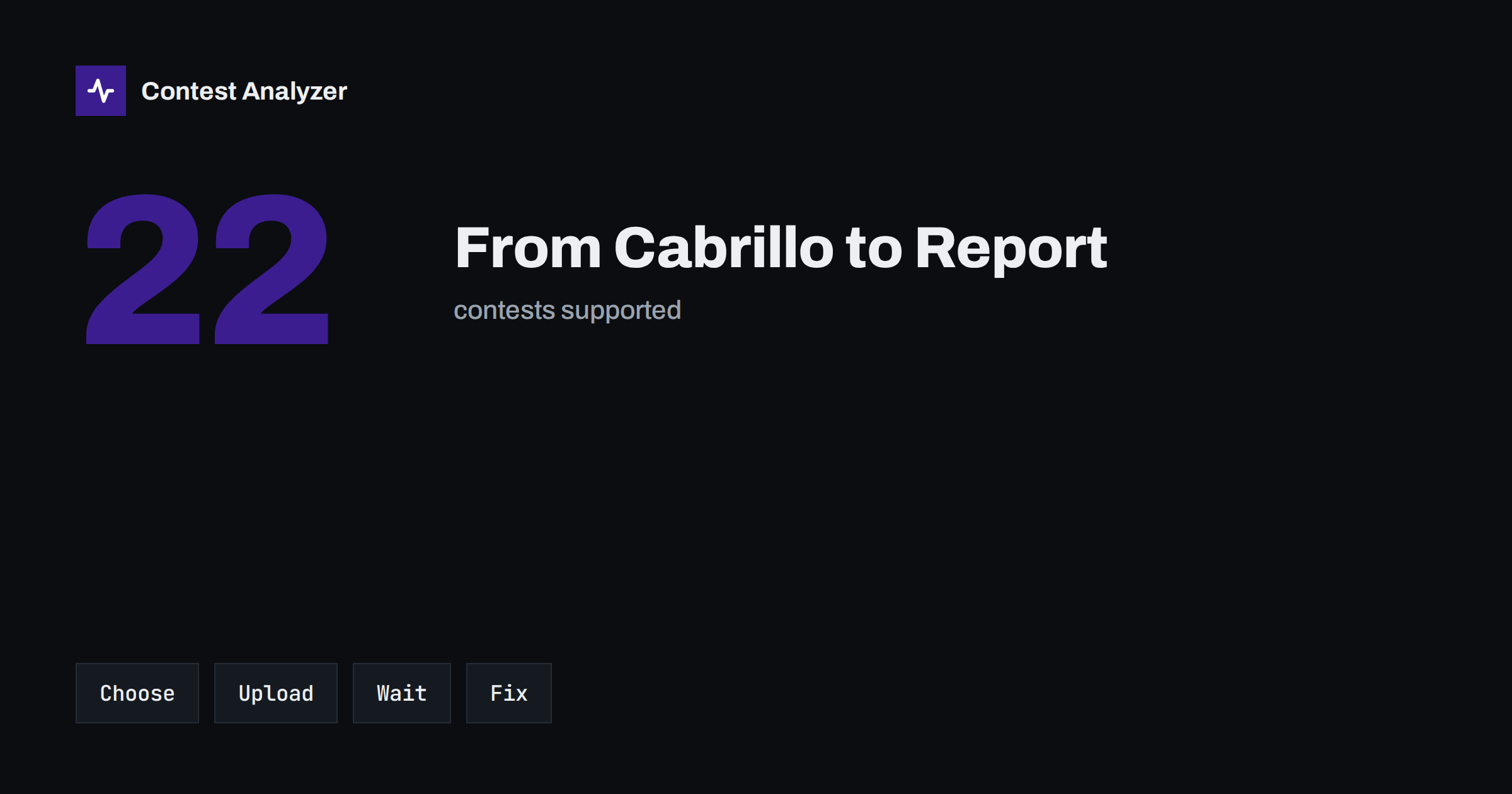
Short answer: To analyse a log in Contest Analyzer you choose the contest and year, upload your Cabrillo file, wait while the check runs in the background, open the report, fix any doubtful QSOs right in the table and download a corrected Cabrillo file. This walkthrough follows those steps in order and explains what to look at in each, so that your first report is useful from the start.
Before you start: what you need
You need three things: a Cabrillo log from your contest, an account, and a callsign that is verified in that account. A log can be checked only for a callsign in your account that is verified, so accounts are not shared. This is a rule of the service and it is explained on the FAQ page. Any Cabrillo 3.0 file from N1MM Logger+, DXLog, Win-Test and others is accepted, and different spacing, an extra TX column and ISO-8859 files are handled.
If you have not yet exported the file from your logger, do that first. Our article on exporting Cabrillo from N1MM Logger+, DXLog and Win-Test lists the general steps. It is worth opening the file in a text editor to see that the header names the right contest and your callsign. A clean header avoids confusion later.
Step 1: Choose the contest
The first step is to pick the contest and the year. The service supports 22 contests, among them CQ WW DX in SSB, CW and RTTY, CQ WW WPX, CQ WW 160-Meter, ARRL International DX, IARU HF World Championship, WAE DX, Russian DX Contest, All Asian DX, 9A DX, ARI International DX, Worked All Germany, Stew Perry Topband Distance Challenge and the European HF Championship. You can see the complete and current list on the contests page.
Choosing the contest matters because each contest has its own period, bands and exchange built in. The fixed items of the exchange, such as CQ or ITU zones, are checked according to those rules. Serial numbers are not checked. If you select the wrong contest or the wrong year, the period and band checks will not fit your log, so spend a moment to make sure that your choice matches the file. Team and club members can add their logs to the same contest, which is useful for comparing results within a group.
Step 2: Upload the Cabrillo log
Next you upload the file. There is nothing to install: the service works with the file that your logging program already writes. After the upload, your log appears in My logs. If a plan includes a size limit, the number of QSOs in the file is what counts, and every QSO line is counted, including dupes. The details of the plans are on the pricing page, where each plan lists how many QSOs a log can have.
If you operated with several computers or want to add an extra log for the same contest, the plans include a main log plus extra logs. That is handy when a multi-operator station merged its files, or when you want to analyse a second log from the same weekend.
Step 3: The check runs in the background
After the upload, the check runs in the background. You do not need to keep the page open. Progress is shown live in My logs, and the report appears as soon as it is ready. This is practical because it lets you upload the file and go back to other work, or upload several logs in a row.
During the check, every callsign is verified against official license databases and several independent reference sources. When a callsign looks wrong, the most likely correct callsign is suggested. The zones are checked too: CQ and ITU zones are checked for every QSO, and a zone that does not exist in that country is always flagged. Contest periods and band limits are also checked, as described in the next section.
Step 4: Read the report
When the report opens, the first thing to notice is that it is short where it should be short. Only probable errors are flagged. A single doubtful hint never makes an error, and dupes are not errors: they are listed separately and are never counted as errors. You see a short list of QSOs worth a second look, not thousands of warnings. Each row shows the time, band, callsign and number, together with a suggestion or a note, such as a likely correct callsign or a zone that is not confirmed.
The report also marks QSOs outside the contest period and outside the band limits for your ITU region; split QSOs are shown as a note. This is useful because those QSOs are a classic source of unwelcome surprises. Read each flagged item with your own knowledge of the weekend: you were at the radio and the service was not. Where the suggestion matches what you remember, accept it. Where it does not, leave the line alone.
Step 5: Use the statistics
The report is more than a list of doubtful QSOs. It gives full statistics: rates, QSOs by hour and band, countries, continents, CQ and ITU zones, WPX prefixes, distance, beam heading, breaks and off time, and callsign length and structure. This is the part to read slowly after the contest is over, because it shows how the weekend actually went. If you upload logs from earlier years, you can compare the statistics year on year with your own logs.
Start with the hourly picture: where were the gaps and where were the peaks? Then look at the bands, and then at the multipliers. Our article on hour-by-hour analysis describes how to read such a sheet. A single report does not answer every question, but it gives you a list of specific things to try next time.
Step 6: Fix QSOs and download a corrected Cabrillo
When you decide that a QSO should be changed, you edit it right in the report. You can edit callsigns, zones, time and frequency. You can also mark QSOs as checked in your own audio recording, which helps when you have listened to a doubtful contact, and you can duplicate a QSO line when you need it. When you are done, you download a corrected Cabrillo file that is ready to submit.
It is wise to keep your original file as well. The corrected file is the one to send to the organiser, while the original stays in your archive. If you want to understand the idea in more depth, read the article on producing a corrected Cabrillo before you submit.
Privacy and trust
Your log and your callsign are never shown to other users. This is stated on the FAQ page and it means you can upload without worrying about exposure. The reference data used in the check is refreshed automatically: weekly, monthly and around every contest weekend, so the check does not rely on stale information.
One more practical point: the service is available in 25 languages, so the interface can follow your preference. See the pricing page for the current plans.
Common questions before the first upload
Newcomers often ask whether a report will show hundreds of problems. In practice the opposite is true: the design goal is a short list. If your log was kept carefully, the list may contain only a handful of QSOs, and that is a good result, not a failure of the check. The strength of the approach is that when something is flagged, there is real reason to look at it.
Another common question is whether the check replaces your own review. It does not. The report is a second pair of eyes, and you are still the person who was at the radio. The best use is to run it before you submit, review the flagged lines with your notes and recordings, and then submit the corrected file. After the results are published, compare the organiser’s feedback with your report; over a few contests you will learn which kinds of mistakes you make most often and can change your habits at the station.
A last tip: keep the same naming for files from year to year, for example the contest, the year and your callsign. When you return to a report months later, you will find the right log at once, and comparing years becomes a routine and not a search.
Related reading
- Check Your Contest Log Before You Submit: A Practical Checklist
- A 30-Minute Routine to Check Your Log Before the Deadline
- Producing a Corrected Cabrillo Before You Submit
The bottom line
The path from file to report is short: choose the contest, upload, wait for the background check, read the short list of doubtful QSOs and the statistics, edit what needs editing and download the corrected Cabrillo file. Use your own memory of the contest to judge each suggestion, and keep your original file safe.
FAQ
Which logging programs can I use?
Any Cabrillo 3.0 file works, including files from N1MM Logger+, DXLog and Win-Test.
How long does a check take?
It runs in the background. Progress is shown live in My logs, and the report appears as soon as it is ready.
Are dupes counted as errors?
No. Dupes are listed separately and are never counted as errors.
Are serial numbers checked?
No. Fixed items such as CQ or ITU zones are checked, but changing serial numbers are not.
Can I fix QSOs in the report?
Yes. You can edit callsigns, zones, time and frequency in the report and download a corrected Cabrillo file ready to submit.