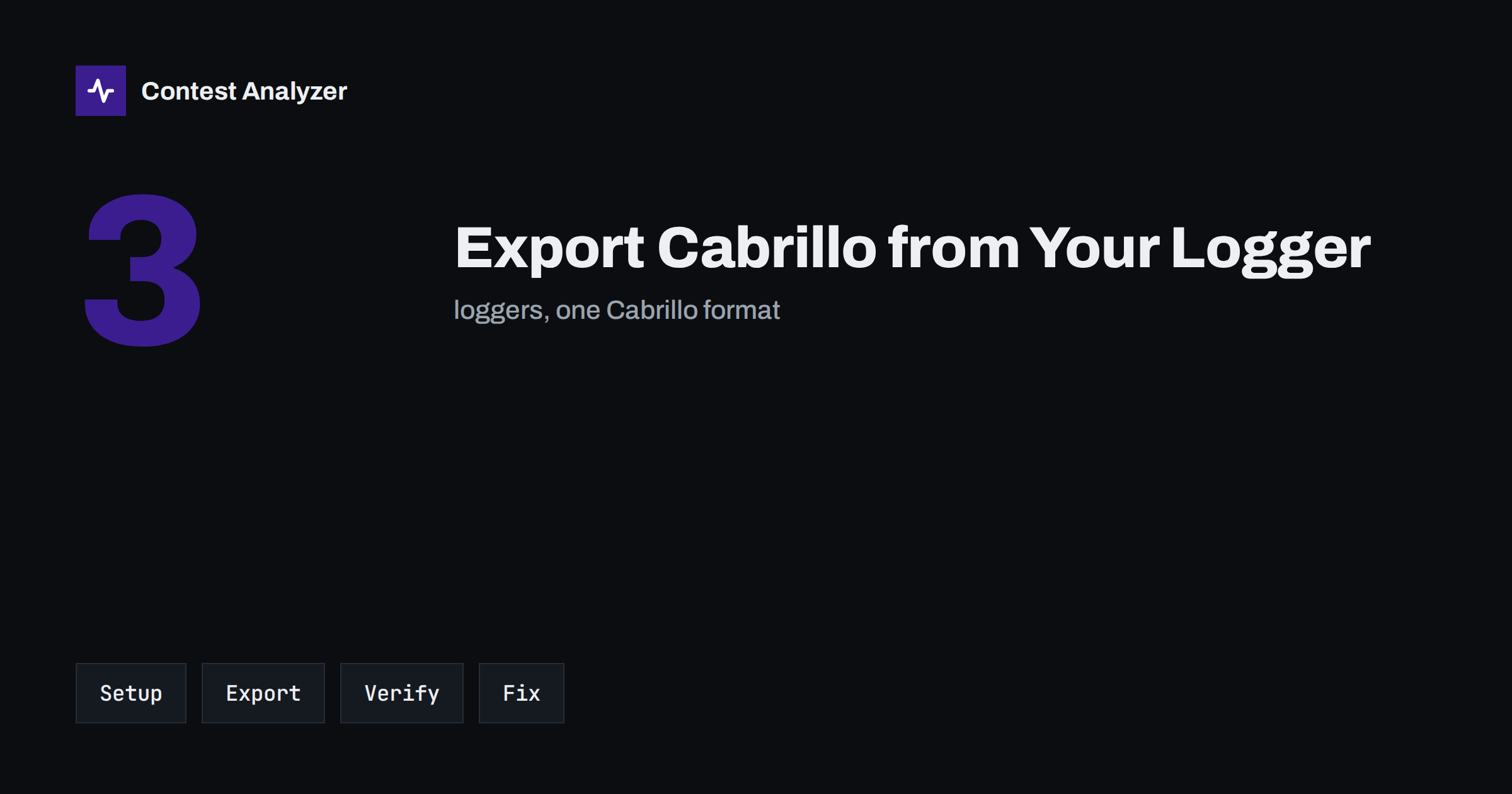
Short answer: In every contest logger the sequence is the same: enter your station and category details first, run the program’s Cabrillo export, save the file, then open it in a plain text editor and check the header and QSO lines before you upload it. Menu names differ between programs and versions, so use the steps below as a map and rely on the logger’s own help for exact wording.
What a Cabrillo file is
Cabrillo is the standard text format for sending a contest log to the organizers. It is a plain text file with two parts: a header, made of lines such as CALLSIGN: and CATEGORY-POWER:, and the QSO lines, one per contact, beginning with QSO:. The file ends with END-OF-LOG:. Almost every contest sponsor accepts it, and the format description is maintained on the WWROF Cabrillo page.
The header is covered in detail in our Cabrillo header guide. This article is about producing the file in the three programs most contesters use, and about confirming that what the program wrote is what you intended.
Before you export: the common preparation
Whatever program you use, most export problems begin before the export. A few minutes of preparation prevent the majority of them.
- Make sure the right contest is selected in the logger and that the log you are exporting is the one for this contest. Mixing logs from different contests in one database is a common reason for strange files.
- Fill in the entry information: callsign, category (operator, band, power, mode, assisted or not), operator names, address and email, club if needed, and the claimed score if your program calculates it.
- Check the station settings that go into every line, such as your CQ or ITU zone, state or province, or power class, depending on the contest exchange.
- Check the time zone and clock. Cabrillo uses UTC. If the PC clock or time zone was wrong during the contest, the times in the file will be wrong.
- Review the log itself. Look through the log for obviously wrong calls or exchanges and fix them in the logger first, so that the export is already clean.
Exporting from N1MM Logger+
N1MM Logger+ keeps one database for many contests and stores your entry details with each contest. The general path is as follows.
- Open the database and contest log you want to export.
- Confirm the contest entry information (callsign, category, operators, address) in the contest setup. These values are used for the header.
- Use the Cabrillo item in the File menu, usually called something like “Generate Cabrillo file”. The program asks for the entry details if any are missing.
- Choose where to save the file. Many users keep the name it proposes, which contains the callsign and the contest.
- Open the saved file and check it, as described below.
If something in the output is wrong, correct it in the log or in the entry information and export again, rather than editing only the text file. That way the next export will not repeat the mistake.
Exporting from DXLog
DXLog stores contest-specific settings in its contest definitions and in the operator and station settings. Look for the Cabrillo or export function in the program’s file or log menu. Before using it:
- check that the contest definition selected matches the contest you operated;
- fill in the callsign, category, operators and address in the settings that the export uses;
- make sure the log has been saved and that you are exporting the correct log file.
The export writes the Cabrillo file to a folder of your choosing. Menu names and dialogs vary between DXLog versions, so check the manual for your version if the option is not where you expect it.
Exporting from Win-Test
Win-Test is network-based, so a multi-operator station may have several logging computers working on one log. For a single station, or after combining logs, the principle is the same.
- Make sure that all computers have synchronized, or that you are working with the merged log, so that every QSO is in the file you export.
- Fill in the contest and station information that Win-Test asks for, including the category and the operators.
- Use the export function in the file menu and choose Cabrillo as the format.
- Save the file and review it.
For networked stations in particular, check that the number of QSOs in the export matches the total you expect. A missing client or an unmerged log would be easy to overlook in a long file.
What to verify in the file
Open the Cabrillo file in a plain text editor, not in a word processor. Then read the first twenty lines and a few QSO lines.
| Check | What you should see |
|---|---|
| START-OF-LOG and CONTEST | The correct log version and contest name |
| CALLSIGN | The call you actually used |
| CATEGORY lines | Operator, band, power, mode as you operated |
| OPERATORS and address | Filled in as the rules require |
| QSO lines | Frequency, mode, date, time in UTC, calls and exchanges |
| Sent exchange | The same correct zone or number in every line |
| END-OF-LOG | Present as the last line |
A typical QSO line looks like this, with a made-up example:
QSO: 14250 PH 2026-10-24 1432 W1XYZ 59 05 DL1ABC 59 14
Check that the first and last QSOs fall within the contest period, that the bands match what you used, and that the number of QSO lines is what you expect. Look at a handful of lines from the beginning, middle and end rather than only the top of the file.
Common export problems
- Wrong category or power in the header. This usually comes from default values that were never changed. It can lead to a log being classified differently from what you intended.
- Wrong sent zone or exchange. If the station setting was wrong at the start, every QSO carries it. Correct it in the logger and export again.
- Times outside the contest period. Often a time zone or clock problem, or test QSOs left in the log.
- Test or practice QSOs in the log. Remove them before exporting.
- Missing QSOs. A filter in the logger, a wrong log selected, or unmerged networked logs.
- Characters that break the file. Special characters in names or addresses, or editing in a word processor, can damage the layout. Use a plain text editor.
Keeping files and submitting
Treat the export as one step in a routine rather than the end of the job. A few habits make the whole process calmer.
- Keep the original database. Never delete the logger’s own files after you have exported. If a problem turns up later, you can correct it at the source and export again.
- Name the files clearly. Include the callsign, the contest and the year, and add a version number each time you export a corrected file. When you have three versions in a folder at the deadline, you will be glad to know which one is the latest.
- Back up before the deadline. Copy the final Cabrillo to a second drive or a cloud folder, so that a failing computer does not cost you a weekend of work.
- Read the submission instructions. Each sponsor says how the file should be named, where it is sent and whether a confirmation is returned. Follow those instructions and keep the confirmation.
- Do not wait for the last minute. Upload pages are busy near the deadline, and a small header error found at the last moment is much harder to fix.
If you took part in several contests in the same season, a short checklist saved next to your logger saves time: contest selected, entry information complete, clock and zone correct, export done, file opened and read, backup made, file uploaded, confirmation saved.
After the export: a final check
Once the file looks right in structure, check the content. Doubtful callsigns and wrong zones are the most common reasons for lost QSOs, and they are hard to see in a thousand text lines. Contest Analyzer reads Cabrillo files from N1MM Logger+, DXLog and Win-Test, checks every callsign and every zone against official license databases and several independent reference sources, and highlights only the few QSOs worth a second look. You can edit calls and zones in the report and download a corrected Cabrillo. Serial numbers are not checked, and dupes are not treated as errors. See the pre-submission checklist for the full routine, and the contests page for the 22 contests supported.
Related reading
- The Cabrillo 3.0 header explained
- How to check a contest log before you submit it
- CQ WW DX SSB checklist
The bottom line
Exporting Cabrillo is quick, but the file is only as good as the information behind it. Set the entry details and station settings first, export, then read the file as a human: header, a few QSO lines and the end marker. Correct problems in the logger rather than only in the text file, and always keep the original log.
FAQ
Can I edit a Cabrillo file by hand?
Yes, it is plain text, but be careful to keep the layout. It is safer to correct the log in the program and export again, so the problem does not return.
Why does my header show the wrong category?
Most often because the entry information was left at its default or filled in for another contest. Fix it in the logger and re-export.
Is the Cabrillo from each program the same?
The format is the same, but details such as spacing and the fields written for each contest can differ, so always read your file before sending it.
Should I keep my original log?
Yes. Keep the logger database and the exported Cabrillo, so you can re-export or compare later.
Where do I send the file?
Use the upload page or email address given in the official rules of the contest, and check the deadline.